How to Hide Reels From Your Instagram Grid Without Archiving
Open the Reel, tap the three dots, then Remove from profile grid. It stays in your Reels tab with its likes. Plus how to put a Reel back on your grid.
To hide a Reel from your Instagram grid, open the Reel on your profile, tap the three dots, and choose "Remove from profile grid" (on some versions it sits under "Manage"). The Reel stays in your Reels tab, keeps its likes and comments, and stops appearing between your posts. To keep a new Reel off the grid from the start, turn off the option to share it to your feed before you post.
That is the whole how-to. The more useful question is why you want to hide it, because the reason is usually the shape of the Reel, not the Reel itself. This guide covers both: the steps, what each setting changes, and how to post Reels that fit a planned grid so there is nothing to hide.
How to hide Reels on Instagram, step by step
Instagram renames these menus often. The steps below match the app and the current guides I checked on October 6, 2026. If a label reads slightly differently on your phone, look for the same idea in the same place.
Before you post: keep it off the grid
When you post a Reel, the last screen before Share has an option to share it to your feed. It has been called "Also share to feed" and "Share to feed" over the years. Turn it off and the Reel goes to your Reels tab only. It never lands on your main grid.
This is the cleanest route if you already know a Reel does not match your feed. Nothing appears and then disappears, so nobody browsing your profile sees the grid jump.
After you post: remove it from the profile grid
- Go to your profile and tap the Reel on the grid.
- Tap the three dots on the Reel.
- Tap "Manage" if you see it, then "Remove from profile grid".
- Confirm. The tile leaves the grid and the posts after it slide over by one.
The Reel is not deleted or archived. It still plays in your Reels tab, through its link, and anywhere Instagram recommends Reels.
How to hide Reels from the Instagram grid without archiving
Archiving is the wrong tool for this. An archived Reel disappears from everywhere on your profile, Reels tab included, and only you can see it. "Remove from profile grid" is the without archiving option: it hides the Reel from the grid and nothing else.
How do I put a Reel back on my grid?
This is the part people regret. Instagram once had an "Add to profile grid" option for Reels, but guides from 2022 onward report it gone, and I could not find it documented anywhere in October 2026. Open the Reel's menu first, in case your account has it back. If it is not there, the dependable way back is to post the Reel again with sharing to feed turned on. The new post starts with no likes or comments.
So treat removal as one way. If you are unsure, use the next option instead.
Rearranging instead of hiding
Since June 8, 2026, Instagram lets you reorder your profile grid (ABC News covered Meta's announcement). Long press any post on your grid, choose "Reorder grid", and drag tiles where you want them. The change saves at once and every visitor sees it. It works in the iPhone and Android apps, not on desktop, and pinned posts (up to three) stay locked at the top.
Instagram first promised this in January 2025, when it switched the grid from square tiles to taller ones and broke a lot of carefully planned profiles. For Reels, reordering is often the better fix. A Reel that clashes with the posts next to it may look fine three rows down, between two posts in the same color. You keep it on the grid and you can always move it again.
Share to feed or not: what each setting changes
Here is where a Reel shows up in each case, as of October 2026.
| Setting | Profile grid | Reels tab | Followers' feed |
|---|---|---|---|
| Shared to feed | Yes | Yes | Can appear |
| Not shared to feed | No | Yes | No |
| Removed from profile grid | No | Yes | Already shared |
| Archived | No | No | No |
Trial Reels, which Instagram introduced on December 10, 2024, are a fifth case. Instagram's trial Reels announcement says a trial is shown to people who do not follow you, and your followers do not see it in their feed or Reels tab. It only joins your profile grid if you later choose to share it with everyone.
Instagram does not publish a number on how any of these settings changes a Reel's views. Removing one from the grid does not delete its likes, comments or plays. I would not pick a setting for reach. Pick it for how your profile looks.
Why owners hide Reels in the first place
Owners who hide Reels usually have a planned grid. They post designed images in a pattern: a dark post, a light one, a photo, repeat. Then a Reel arrives and the tile is a frame of a face mid sentence, or a phone screen recording, or a blurry first frame Instagram picked on its own. One tile breaks three rows of rhythm.
The cause is the shape. Most Reels are filmed at 9:16, a tall phone screen, while the posts around them are 4:5. The grid tile is cut from each of them differently, so a Reel's cover lands in your grid with a different crop, different colors and often no headline. The cover you picked may not even include the part you cared about. That is why "instagram grid vs reels" feels like a choice you have to make.
What the 3:4 tile cuts from a Reel
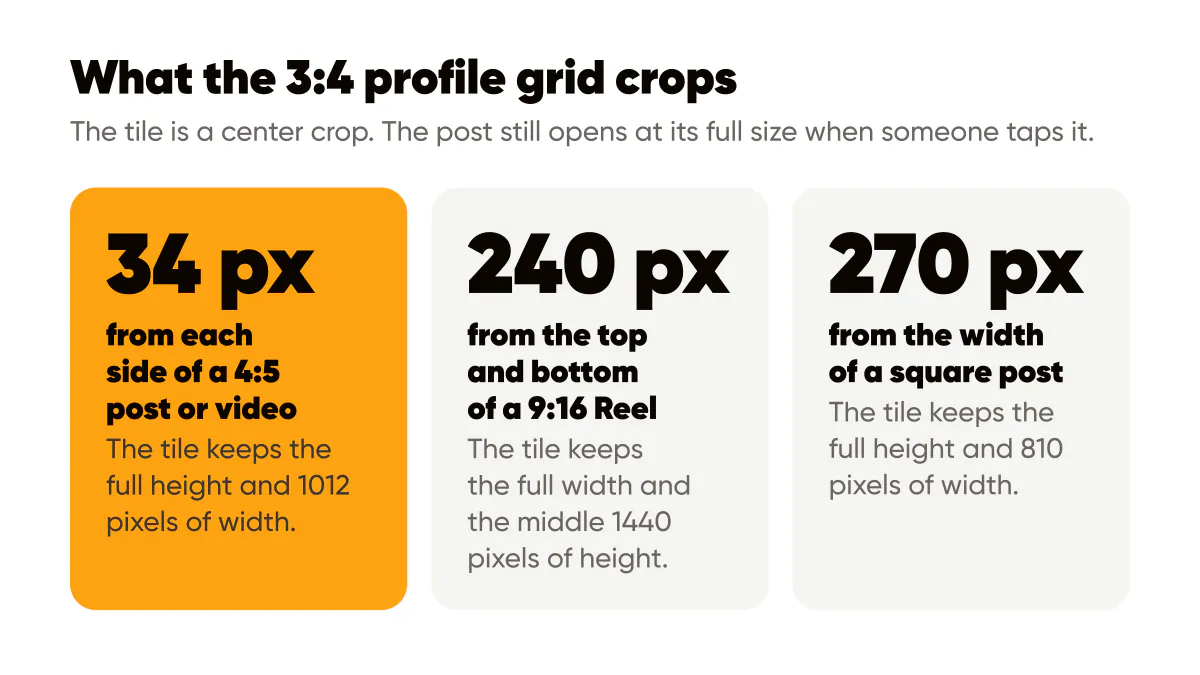
Since January 2025, every tile on an Instagram profile is 3:4, a center crop of whatever you posted. Here is what that crop takes from a Reel compared with your posts, on a 1080 pixel wide canvas. How that crop decides which grid layouts hold is in Instagram grid layout ideas that still work with Reels.
- A 4:5 post or video (1080 by 1350). The tile keeps the full height and 1012 pixels of width, so about 34 pixels go from each side.
- A 9:16 Reel (1080 by 1920). The tile keeps the full width and the middle 1440 pixels of height, so 240 pixels go from the top and 240 from the bottom.
- A square post (1080 by 1080). The tile keeps the full height and 810 pixels of width, so 270 pixels, a quarter of the width, are gone.
A 4:5 post loses the least. That is why I design every post at 4:5 with nothing important near the side edges, as I explain in why 4:5 portrait posts work. A Reel at 4:5 gets the same treatment on the grid. In the full screen Reels player it plays in the middle of the tall screen with space above and below, which is a fair trade for a grid tile that matches your posts.
If you want to check a tile before you post, the free Instagram post crop preview shows the 3:4 crop of any image, and the Reel cover safe zone checker shows where a 9:16 cover gets cut and covered. The Instagram Reel cover size guide has the exact figures.
When not to hide a Reel
Hiding makes sense for a Reel that looks nothing like your feed and never will: a quick behind the scenes clip, a trend you joined, a video someone else edited. For those, keep sharing to feed off and stop worrying about it. If you want more Reels that do fit, most of these 40 Reel ideas for small business start from a designed post and need no filming.
Do not hide a Reel that already looks like your posts. If the cover is one of your designed posts, in your colors, with your headline, it is just another tile in the pattern. Hiding it leaves a gap in the story your grid tells, and a visitor scrolling your profile never learns the video exists. The goal is not a grid with no Reels. It is a grid where nothing looks out of place.
Reels you won't want to hide
If Reels keep breaking your grid, change the Reels, not the grid. A Reel that is 4:5 like your posts, starts and ends on a designed post, and uses that post as its cover lands in the grid as one more tile in the pattern, so there is nothing to hide. The full method, with the size, the timing and the cover step, is in how to make animated Instagram posts. To convert a post you already published, see how to turn an Instagram post into a Reel, and for cover design in general, Instagram Reel cover design.
Where Creobee fits
This is the problem I built Creobee's animated posts to solve. Creobee plans, writes and designs a small business's posts as one patterned 4:5 feed, and each single post in a feed style can also come as a short animated version, 6 to 12 seconds, animated from the post's own design by a motion template made for that kind of post. Each one starts and ends on the exact still post, with sound effects timed to the motion that you can turn off.
On the Autopilot and Pro plans, an animated post you schedule goes to Instagram as a Reel that stays in the grid, with the still as its cover. The tile on your profile is the post you planned, so there is nothing to hide and nothing to rearrange. On the Solo plan you download the video and the image and post them yourself: keep the first frame as the cover, since it is the still post. Animation is on every plan, costs no extra posts, and is off until you turn it on.
To be clear about what it is not: Creobee does not film anything and does not make AI video. If your Reels are you talking to the camera, it will not replace them. It makes your designed posts move, so the Reels that come from your feed look like your feed. It will not promise you more views either. What it does is keep your grid in the pattern you chose, which is what Instagram feed design is for. For pattern ideas that hold up when Reels join the grid, see Instagram grid layout ideas.
FAQ
Do Reels appear on the grid?
Yes, when you share them to your feed, which is usually on by default. A Reel shared to feed appears on your profile grid and in your Reels tab. Turn off sharing to feed before you post, or use "Remove from profile grid" after, and it shows in the Reels tab only.
Does removing a Reel from the grid delete it?
No. "Remove from profile grid" only takes the tile off your grid. The Reel stays in your Reels tab with its likes, comments and plays, and its link still works. Archiving is different: it hides the Reel everywhere on your profile, Reels tab included.
Can I share a Reel to my feed but not my grid?
Not as separate settings. Sharing to feed is what puts a Reel on your grid. If you want it off the grid, turn sharing to feed off, or remove it from the grid after posting. Followers can still find it in your Reels tab.
What size is a Reel on the Instagram grid?
The grid shows every tile at 3:4. A 9:16 Reel at 1080 by 1920 shows its middle 1080 by 1440 pixels. A 4:5 Reel at 1080 by 1350 shows 1012 by 1350, losing about 34 pixels from each side, the same as a 4:5 post.
Does hiding a Reel from the grid hurt its views?
Instagram does not publish a figure either way. The Reel keeps its likes, comments and plays, and it can still be recommended in the Reels tab. Choose the setting for how your profile looks, not for reach.
The short version
Hide a Reel when it will never look like your feed. Reorder it when it only clashes with its neighbors. And for the Reels that come from your posts, make them 4:5, start and end them on the planned post, and use that post as the cover. Then the grid and the Reels stop being two separate jobs.

Put it into practice
Turn this into posts designed for your feed
Paste your website or say what you do. Creobee plans, writes and designs your posts about it as one feed in your logo and colors, captions included, and on Autopilot it posts them for you.
How the Animated Instagram posts works