How to Make Animated Instagram Posts in 2026
How to make animated Instagram posts: the size and length to use, how to animate one in Canva step by step, and how to keep your grid looking planned.
To make animated Instagram posts, design the finished post first at 1080 by 1350 pixels (4:5), then move only its words and shapes for a few seconds, end on the finished design, export an MP4 and post it as a Reel shared to your grid. You can do that by hand in Canva or CapCut in about fifteen minutes per post, or let a tool animate posts you already designed. This guide covers the size, the one rule that keeps your grid looking planned, both manual methods step by step, sound, and the most common mistakes.
A note before the details. I build Creobee, which makes animated Instagram posts from designed feed posts, so I have a stake in Method C. Methods A and B work without it, and I have kept them complete. Platform facts below come from Instagram's, Meta's and Canva's own pages as I read them on October 6, 2026; menus move, so check the current button names before you plan around one.
Can Instagram posts be animated?
Yes. Instagram has no separate "animated post" type, but any video you post to the feed counts. Since July 2022, new video posts on Instagram are shared as Reels (TechCrunch reported the change when Meta announced it). So an animated post is a short video that goes out as a Reel and, if you leave sharing to the feed on, also sits on your profile grid next to your still posts.
That second part matters. The grid is what a new visitor sees before they follow, and an animated post that looks like a stranger next to your other tiles costs more than the motion earns.
Animated Instagram post size and length
Use the same canvas as your feed posts:
- Size: 1080 by 1350 pixels, a 4:5 portrait frame. The full reasoning is in why 4:5 is the best Instagram post format, and every other format is in the Instagram post size cheat sheet.
- File: MP4 with H.264 video and AAC audio, 30 frames per second. Every editor below exports this, and it is what schedulers expect.
- Length: 6 to 12 seconds. Long enough to read, short enough not to feel like a commitment.
Why not 9:16 for a grid post?
A full screen Reel is 1080 by 1920 (see the Instagram Reel size guide). Right for a talking video, wrong for a designed post. Since January 2025 the profile grid shows 3:4 tiles (PetaPixel covered the switch), so a 9:16 video loses a big slice of its top and bottom in the grid, and your headline sits wherever the crop leaves it. A 4:5 video loses only a thin strip on each side, about 34 pixels, the same as your 4:5 photo posts. Instagram shows a 4:5 Reel a little smaller than full screen in the Reels tab, which is a fair trade for a grid that lines up.
Rule 1: start and end on the finished design
The rule that separates a planned feed from a messy one: the first and last frame of the video should be the finished still post.
The grid tile of a Reel is its cover. If you never pick one, Instagram uses a frame from the video, often a moment where half the words have not arrived yet. If the video starts and ends on the finished design, the cover, the first frame some apps show, and the frame the loop returns to are all the post you designed. Nobody sees a half-built post in your grid.
The second half of the rule is what moves. Move the words and the shapes: a headline that rises in, a highlight that wipes across a word, list rows that arrive one by one, a number that counts up. Keep your photo still. Zooms and pans on a product photo read as a slideshow, and they crop the very thing you photographed.
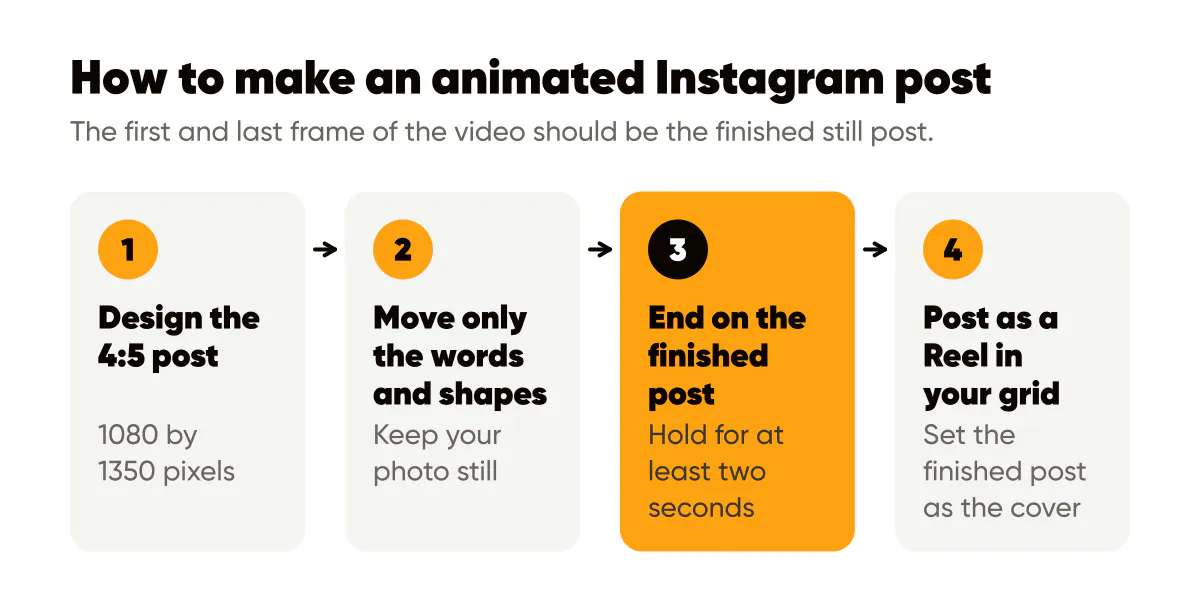
With that in place, the motion is a small reward for the people who watch, and the grid stays what you planned for everyone else. It also works with the sound off, because the finished words hold on screen at the end.
Method A: how to make an animated Instagram post on Canva
Canva is where most small businesses already design, so it is the shortest path. Canva's help page on applying, changing, or removing animations is the reference for the current menu names.
- Create a design at a custom size of 1080 by 1350 pixels, or open the 4:5 post you already made.
- Finish the still design first: background, photo, headline, logo. This is your cover and your last frame.
- Select the headline. In the toolbar above the editor, select Animate, then the Element tab (the Page tab animates everything on the page at once, which is usually too much). Hover to preview, and pick a quiet entrance such as Fade or Rise.
- Animate one or two more pieces at most, such as a shape behind a word or your list rows. Leave the background and the photo alone.
- If the animation settings let you choose enter, exit or both, pick enter only, so the page ends on the finished design.
- Set the page duration in the timeline at the bottom to 6 to 8 seconds, so the finished post holds for at least two seconds after the last move.
- Select Share, then Download, and choose MP4 Video. Download the same page as a PNG too: that is your cover.
Canva's entrance animations start from a page with the words missing, so the first frame is not the finished post. The PNG fixes the grid side: upload it as the cover when you post. Expect about fifteen minutes per post. Adobe Express works much the same way; if you are weighing the two, I compared them in an Adobe Express alternative for feeds and a Canva alternative.
Method B: CapCut keyframes for text
CapCut keyframes give exact control, the better choice when you want one specific move, like a headline that slides up 40 pixels and settles.
- Start a new project and set the ratio to 4:5.
- Export your post from your design tool twice: once complete (the cover) and once without the headline (the background). Put the background on the track and stretch it to 7 seconds.
- Add a text layer in the same font and color as the post, and place it exactly where the headline sits in the finished design.
- Move the playhead to about 1.5 seconds and click the diamond next to Position and Opacity to set a keyframe. This is the finished pose. Set it first.
- Move the playhead back to the start, drag the text 40 pixels down and lower its opacity. CapCut fills in the move between the two keyframes.
- Leave the last 2 seconds without keyframes, so the finished post holds.
- Export at 1080p and 30 frames per second, and use the complete export as the cover.
Keyframes reward restraint. One move per element, all of them landing within the first two seconds, reads as designed.
Sound: do Reels need music?
No. Instagram posts a Reel with no music at all, with original audio, or with sounds from its own library. For an animated post, a few small sound effects that land with the motion (a click as a row arrives, a soft tone as the headline settles) fit better than a song, and they do not clash with whatever the viewer has playing.
Music also brings two problems for a business. A song can be muted later for rights reasons, which Instagram covers on its page about replacing muted audio. And business accounts often get a smaller library than personal ones, mostly Meta's Sound Collection of royalty-free music and sound effects cleared for commercial use, so the song you had in mind may not be there.
How to add sound effects to Reels
In the Reels editor, open the audio tools and look for sound effects, then tap an effect at the moment you want it. The menu names change between app versions, so look for the same idea if yours reads differently. Keep it to a few sounds per post, place each one on a move, and keep them quiet. If a sound does not match something happening on screen, cut it.
Common mistakes with animated posts
- Text in the crop zone. Words within about 34 pixels of the left and right edges disappear in the grid tile. Keep a margin of at least 60 pixels.
- A cover that is not the post. An auto-picked frame mid-animation puts a half-finished post in your grid. Always set the finished design as the cover.
- Motion that hides the words. If the headline is still moving at second four, most people never read it. Land every word in the first two seconds and hold.
- Moving your own photo. Zooming into a product shot crops the product. Move the words; keep the photo still.
- A different look from your feed. An animated post should be one of your posts that moves, not a new template. Same fonts, same colors, same logo spot.
Method C: let Creobee animate your designed posts
Methods A and B take minutes per post and a designer's eye for timing. If you want animated posts across a whole month without opening an editor, that is the job Creobee was built for.
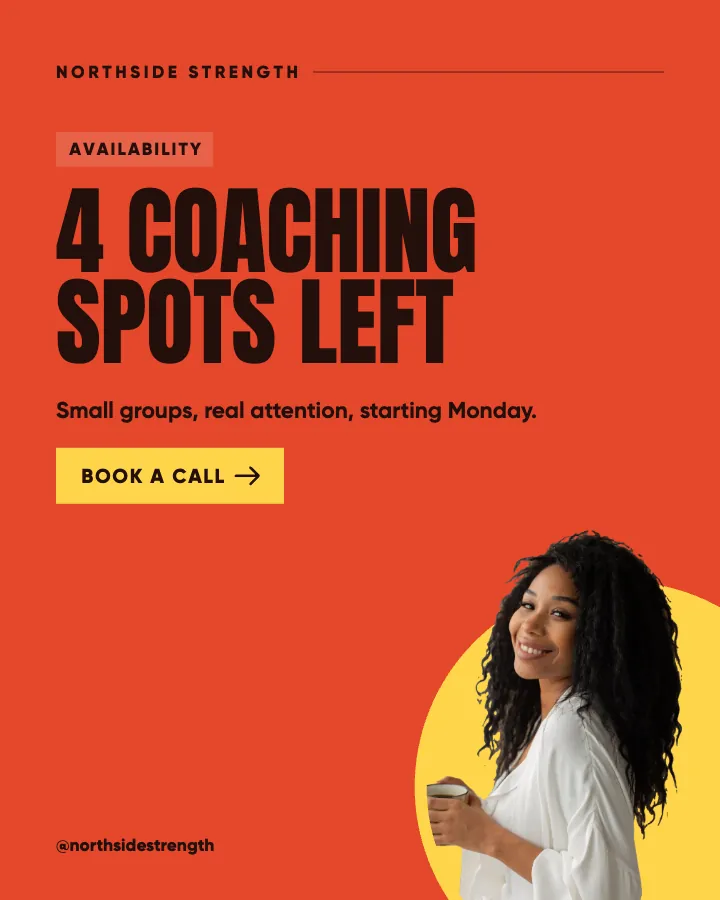
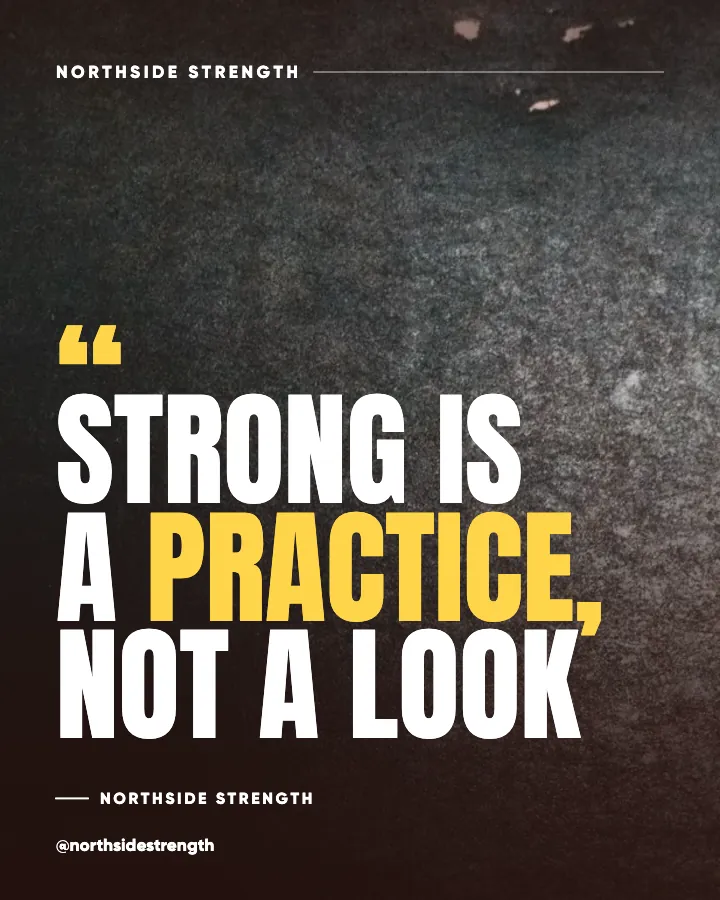
Creobee plans, writes and designs your posts as one patterned feed, in your colors, with your logo and your own photos. Turn on animated posts in the Animation settings and each single post in a feed style gets a motion template that fits what it says (carousels stay still). There are 17 templates, each 6 to 12 seconds: a list gets its rows arriving one by one, a number post counts up, a question builds to its reply prompt, an offer is unveiled. Each one is moved from the post's own design, so the words, colors and layout are the ones you already saw, and your own photo never zooms or pans.
Every animated post starts and ends on the exact still post, which is Rule 1 built in: the grid tile, the cover and the loop are always the design you approved. Sound effects timed to the motion are on with animation, and you can turn them off. There is no music, no voice and no filmed or AI video. You can change a single post's template from its preview, or switch it to no animation.
Animation is on every plan, costs no extra posts, and an animated post counts the same as a still one. Your first 3 posts are free, no card needed: a post, a carousel and a story, enough to see your own brand on real posts. Animated versions are on every plan, off until you turn them on for your weeks. You can start from your website or a few words and see real examples of the motion first.
Posting it
As a Reel shared to your grid. Upload the MP4 as a Reel, keep sharing to the feed on, and set the cover to the finished post. In the grid crop preview, check that the tile shows the full headline. If one ever does not fit your feed, here is how to hide Reels from your grid.
Scheduling. On Creobee's Autopilot ($39 a month) and Pro ($79 a month) plans, an animated post can be scheduled and goes to Instagram as a Reel that stays in your grid, with the still post as its cover. A Facebook Page gets it as a video post; more on that in animated social media posts.
On the Solo plan ($19 a month). Download the video and post it yourself. Because the first frame is the finished post, you can keep the first frame as the cover and the grid stays as planned.
If you already have still posts you like and want to know how to bring them into motion without redesigning them, read how to turn an Instagram post into a Reel.
Frequently asked questions
Do animated posts count as Reels?
Yes. Instagram shares every new video post as a Reel, so an animated post is a Reel. With sharing to the feed on, it also sits on your profile grid like any other post, which is why its cover matters.
What size should an animated Instagram post be?
1080 by 1350 pixels, 4:5, the same as your still feed posts, exported as an MP4 at 30 frames per second. The grid shows it with only a thin strip cropped from each side, so it lines up with the rest of your feed.
How long should an animated Instagram post be?
6 to 12 seconds works well: the words arrive in the first two seconds and the finished post holds for the last two or more, so people can read it.
Can I post an animated post without sound?
Yes. A designed post reads with the sound off, because the finished words hold on screen at the end. In Creobee, sound effects come on with animation and switch off in one tap for every post, and you can also turn them off for one post when you schedule it.
How do I add sound effects to Reels?
In Instagram's Reels editor, open the audio tools, choose Sound effects and tap an effect at the moment you want it. In Creobee, sound effects come timed to each animated post's motion, and you can turn them off.
Put it into practice
Turn this into posts designed for your feed
Paste your website or say what you do. Creobee plans, writes and designs your posts about it as one feed in your logo and colors, captions included, and on Autopilot it posts them for you.
How the Animated Instagram posts works