How to Turn an Instagram Post into a Reel (2026)
How to turn an Instagram post into a Reel: what Instagram does for carousels, the manual way for single posts, and how to keep your grid tile intact.
To turn an Instagram post into a Reel, open a carousel post, tap the three dots and pick "Create Reel from this post". For a single photo post there is no such button, so you build the Reel yourself from the original image, add some motion and sound, and set the post itself as the cover. Do that last part well and the Reel sits in your grid looking exactly like the post you planned.
Can you turn a post into a Reel? The short answer
Instagram added "Create Reel from this post" in 2024. Lindsey Gamble, who tracks platform updates, reported it at launch: it sits in the three-dot menu of a carousel, lays the slides out on a Reel timeline and suggests audio you can keep or swap. It was built for carousels. On a single photo post the option does not show up.
One caution. On 2026-10-06 I could not find a page about this option in Instagram's Help Center, and Instagram renames menu items often. If the wording on your phone is different, look for anything with "Reel" in the three-dot menu of the post.
How to turn a carousel post into a Reel
Here is the carousel route, step by step:
- Open the carousel on your profile.
- Tap the three dots at the top right of the post.
- Tap "Create Reel from this post".
- Instagram places each slide on a timeline and picks a track. Keep it, swap it, or turn the volume down to nothing.
- Change how long each slide stays up. This is the step most people skip.
- Tap Next, write a new caption, set the cover and share.
Slide length decides whether the Reel can be read. Instagram's default timing is set for photos, not for text. A slide with a short headline needs at least 2 seconds. A slide with a full sentence needs 4 or more. If your carousel is a checklist or a how-to, the default cut will flash past every point, and the viewer gets nothing from it.
Write a fresh caption too. The carousel already has the long version; the Reel can open with the one line that makes someone stop. And remember that the original carousel stays where it was, so you now have two tiles of the same content. If they land side by side, either space them out by a few weeks or keep the Reel off the grid. I wrote up the options in how to hide Reels from your grid.
How to turn a single photo post into a Reel by hand
With no button for single posts, you rebuild the Reel from the image. Use the original file you exported, never a screenshot of the post.
In the Instagram app
- Tap the plus button and choose Reel.
- Pick the photo from your camera roll.
- Stretch its length on the timeline. A photo usually comes in at a few seconds; 6 to 10 is a better range for a post with words on it.
- Add something that moves. Text that appears line by line works well. So does a sticker or a shape that slides in. A slow zoom is fine in the middle, but come back to the full photo at the end, or the last frame will not match your post.
- Add sound. On a business account the music library can be limited to royalty-free tracks, so a short voiceover or a few clean sound effects are often the better choice.
- Tap Next, then edit the cover. Choose the frame that shows the full post, or upload the post image itself, and check the profile grid crop before you share.
In Edits
Meta's Edits app gives you more control than the Reel editor: separate layers for text and image, keyframes, and finer timing. The method is the same. Import the photo, keep it still, animate the words or shapes on top, and end on a frame where everything is back in place. Check the canvas size before you start. If the project opens as a tall 9:16 frame, your 4:5 post will sit in the middle with empty bands above and below it.
Do photos turn into Reels by themselves?
No. A photo post or a carousel you publish stays a post. What Instagram did change is video: since July 2022, new video posts shorter than 15 minutes are shared as Reels, and older videos stayed as they were. So when people ask whether Instagram turns posts into Reels, the honest answer is that it does so for videos only. Adding music to a photo post does not make it a Reel either; it is still a photo post with a track attached.
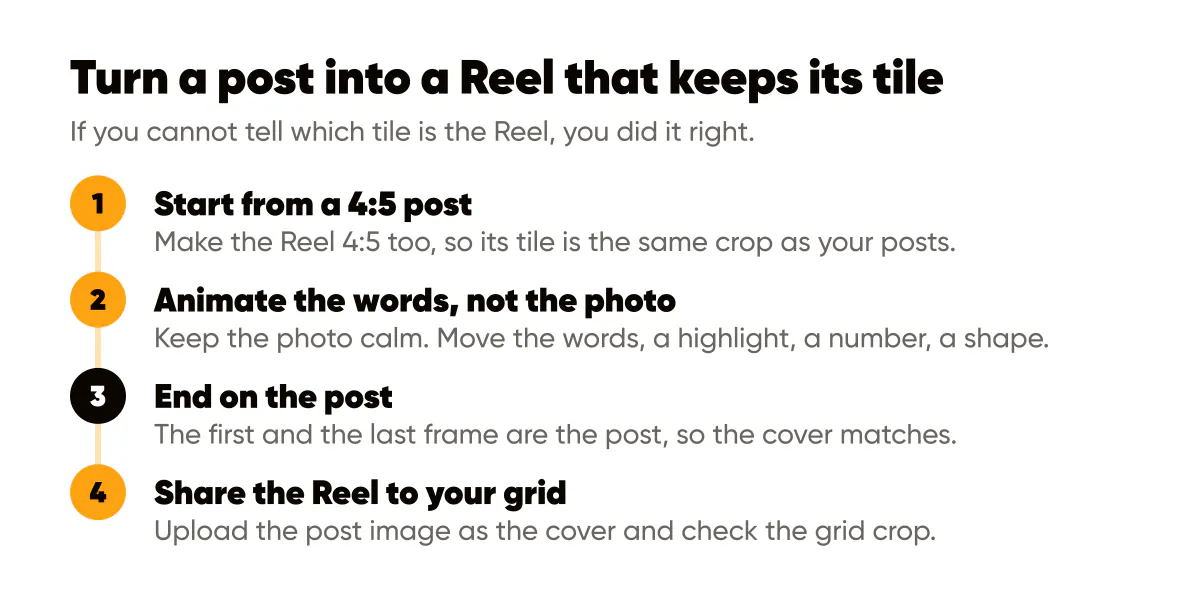
Can you use still photos in Reels? Yes. A Reel can be one photo with sound and text, or a sequence of photos. But a single still with nothing moving reads as a photo with music, and viewers scroll on. The trick is to keep the photo calm and move what sits on top of it: the words, a highlight, a number, a shape. That is also the safest way to keep the end frame identical to the post. Here is the whole method in four steps:
Keep your grid tile when the post becomes a Reel
A Reel shows up in your profile grid like any other post, cropped to the grid's tile. By default the tile is a 3:4 slice from the middle of whatever you upload. That is where most post to Reel conversions go wrong: the grid you planned gets a tile that looks nothing like its neighbors.
Three habits keep the tile intact when a post becomes a Reel: keep the Reel 4:5 like the post, start and end it on the finished post, and upload the post image as the cover instead of letting the app pick a frame. How to make animated Instagram posts explains each one with the crop numbers. The Instagram Reel cover size guide lists the exact sizes, and the free Reel cover safe zone tool shows what survives each crop.
Check that your tool lets you set the cover
Some tools do not let you choose a cover at all; a reviewer of Meta Business Suite wrote on 2026-10-02 that "you cannot choose a reel cover". Check that before you plan a series around one tool. If it cannot, make sure the first frame is the finished post, since that is what some apps show.
Know how it looks in the Reels tab
The Reels tab plays everything in a tall, full-screen frame. A 4:5 Reel fills the width and leaves space above and below it. Open one of your own in the app before you post ten of them. If the Reels tab matters more to you than the grid, 9:16 is the better shape; if the grid matters more, 4:5 is. For a 4:5 refresher, see why 4:5 portrait posts win the feed.
Post or Reel? Static post vs Reel
You do not have to turn every post into a Reel. Here is how I decide:
| Static post | Reel | |
|---|---|---|
| Best for | Price lists, checklists, anything people save and read at their own pace | A headline that lands in steps, a before and after, a number that builds |
| Where it shows | Followers' feeds, your grid, Explore | Followers' feeds, your grid, the Reels tab |
| Effort | Done once it is designed | Timing, sound and a cover on top |
| Grid tile | The post | The cover you set |
Reels can be shown to people who do not follow you in the Reels tab, and a photo post can reach them through Explore. Neither is a promise, and I would not plan a week around reach. Plan around what the content needs. A list of five tax deadlines reads better as a still people can save. "We cut our client's paperwork from 6 hours to 40 minutes" lands better when the number moves.
You can also post both: the still now, the Reel a few weeks later with a new caption. Or post only the Reel when it ends on the post, since your grid tile will look the same either way. For the wider picture of where each format belongs, see Instagram Stories vs feed posts, and for posts worth turning into Reels, these Reel ideas for small business.
The planned way: a designed post and its animated version
Everything above starts after the post is finished. The alternative is to plan the post and its moving version together, so the Reel is never a rescue job. That is what I built Creobee to do, and I want to be exact about it.
Creobee cannot convert a post that is already on Instagram. It plans, writes and designs your feed as 4:5 posts in your colors, with your logo and your own photos. With animated posts switched on, each post in a feed style gets an animated version: 6 to 12 seconds, animated from the post's own design by a motion template that fits what the post says. A checklist reveals its rows one by one, a question builds to its question mark, a number counts up, an offer is unveiled. Sound effects are timed to the motion, and you can turn them off.
Every animated version follows the habits above. It is 1080 by 1350 like the post, your own photo never zooms or pans, and the first and last frames are the designed post, pixel for pixel. On the Autopilot and Pro plans you schedule it, and it goes to Instagram as a Reel shared to your grid with the still post as its cover, and to a Facebook Page as a video post. On Solo you download the MP4 and post it yourself, keeping the first frame as the cover. The method behind it, by hand or with Creobee, is in how to make animated Instagram posts.
Animation is on every plan, Solo included, and an animated post costs the same as a still. What it is not: filmed video or AI-made video. Creobee also makes carousels of 4 to 8 slides, but those stay still and never get an animated version. If you want Reels without being on camera, the page on faceless Instagram Reels goes further, and animated Instagram posts shows the motion templates on real example posts. To see how scheduling works, read about the Autopilot plan. Every account starts with 3 free posts, no card needed, and animated versions are on every plan once you turn them on.
FAQ
Does Instagram turn posts into Reels?
Only videos. Since July 2022, new video posts under 15 minutes go out as Reels. Photo posts and carousels stay posts, even with music added. For a carousel you can make a Reel yourself with "Create Reel from this post" in the three-dot menu.
How do I turn a carousel post into a Reel?
Open the carousel, tap the three dots, choose "Create Reel from this post", then set each slide's length, pick the sound, write a new caption and set the cover. Give text slides at least 2 seconds.
Can you use still photos in Reels?
Yes. Add the photo from your camera roll in the Reel editor and set its length. Keep the photo still and move the text or shapes on top, so the Reel does not read as a photo with music.
Will the Reel show in my grid?
Yes, unless you choose to keep it off the grid. It shows as a 3:4 tile cut from the middle of the cover. A 4:5 Reel whose cover is the post looks the same in the grid as the still post would.
Turn one post into a Reel this week
Pick the post from the last month that did best with saves. If it is a carousel, use the built-in option and fix the slide timing. If it is a single post, rebuild it at 4:5, move the words instead of the photo, end on the post and upload the post as the cover. Then look at your grid. If you cannot tell which tile is the Reel, you did it right. For cover design rules beyond the tile, read Instagram Reel cover design.
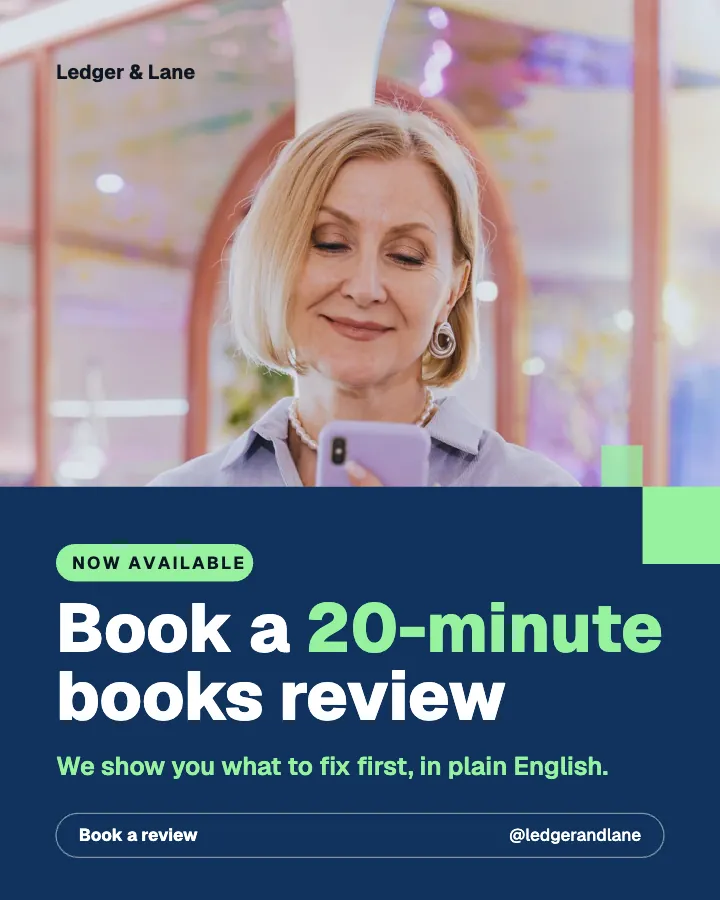
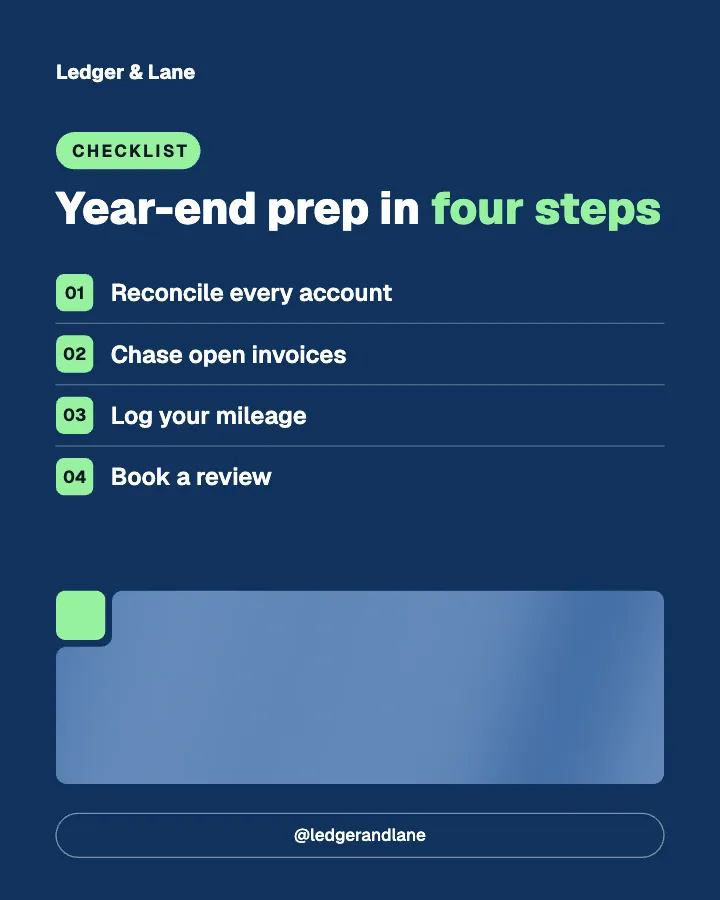
Put it into practice
Turn this into posts designed for your feed
Paste your website or say what you do. Creobee plans, writes and designs your posts about it as one feed in your logo and colors, captions included, and on Autopilot it posts them for you.
How the Animated Instagram posts works